

If you spend hours switching between your phone and laptop just to reply to WhatsApp messages, you’re not alone. It’s annoying. It breaks focus. And honestly, it feels unnecessary in 2026.
That’s exactly where WhatsApp Web comes in.
WhatsApp Web lets you access your chats directly from a laptop, PC, or even another mobile device—without installing heavy software or juggling devices. Simple, fast, and surprisingly powerful.
In this guide, we’ll walk you through WhatsApp Web login, explain how it works on different devices, share security tips, and clear common doubts—using only verified information and official guidance.
No tech jargon. No fluff. Just clean, practical help.
💻 What Is WhatsApp Web?
WhatsApp Web is a browser-based version of WhatsApp. It mirrors your chats from your phone onto a web browser.
In simple words:
- Your phone stays connected
- Your browser shows your chats in real time
- Messages sync instantly
According to WhatsApp’s official documentation, WhatsApp Web works as a linked device, not a standalone account. That detail matters for privacy and security.
Why Use WhatsApp Web?
Let’s be honest—typing long messages on a laptop feels better than thumb gymnastics on a phone.
Here’s why people love WhatsApp Web:
- Faster typing with a full keyboard
- Easy file sharing from computer
- Better multitasking at work
- Larger screen for media previews
- No need to install extra apps
For professionals, students, and remote workers, WhatsApp Web saves serious time.
Devices That Support WhatsApp Web
WhatsApp Web works on almost every modern device.
Supported platforms:
- Windows laptops and PCs
- macOS devices
- Linux systems
- Android phones (as linked devices)
- iPhones
- Tablets (via browser)
Supported browsers:
- Google Chrome
- Microsoft Edge
- Mozilla Firefox
- Safari
Outdated browsers may cause login issues, so keep them updated.
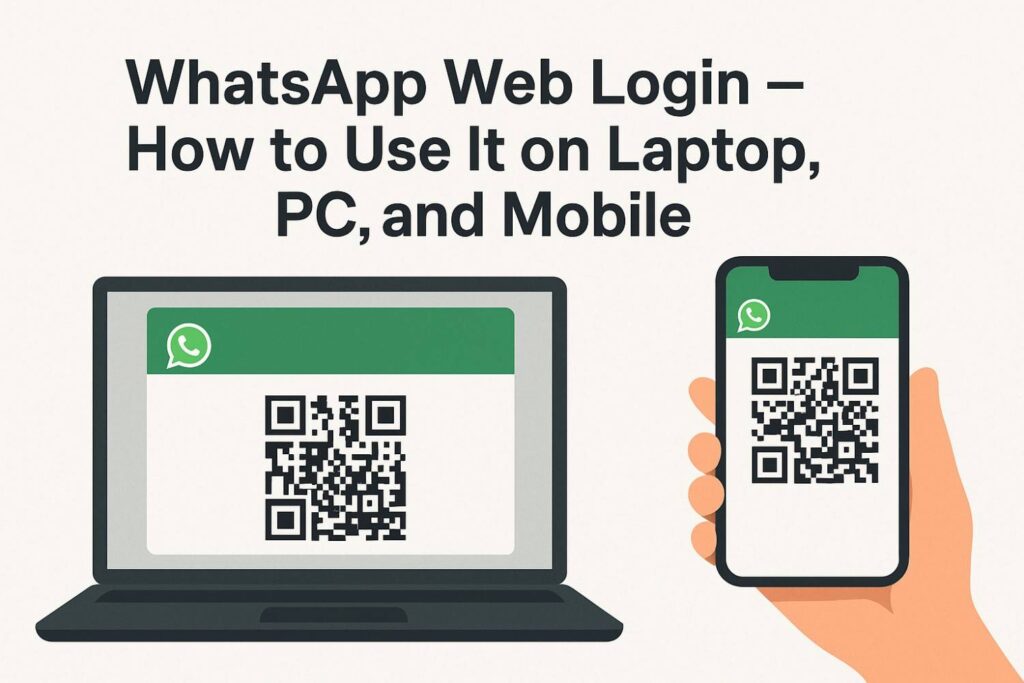
📱 How to Use WhatsApp Web on a Laptop or Desktop
Here’s how you can log in within minutes:
1. Open your browser and go to https://web.whatsapp.com
2. A QR code will appear on the screen.
3. On your phone, open WhatsApp → Tap the three dots (⋮) → Linked devices.
4. Select Link a device and scan the QR code on your computer.
5. Your WhatsApp chats will appear instantly on the computer screen.
💡 Tip: Tick “Keep me signed in” for personal laptops to stay connected.
📲 How to Use WhatsApp Web on a Tablet or Another Phone
You can also use WhatsApp Web on another phone or tablet.
1. Open Chrome or Safari on the device.
2. Type web.whatsapp.com https://web.whatsapp.com/in the browser.
3. If it redirects to the WhatsApp app, open browser settings → Tap Desktop site.
4. You’ll see the QR code appear.
5. On your main phone, open WhatsApp → Linked devices → Link a device and scan the QR code.
💾 Using WhatsApp Desktop App (Windows or Mac)
If you prefer a faster and more stable option, install the WhatsApp Desktop App.
1. Download from https://www.whatsapp.com/download?lang=en
2. Open the app, and you’ll see a QR code.
3. On your phone, link the device by scanning it.
It’s perfect for office use since it allows notifications and file sharing directly from your computer.
🔒 Is WhatsApp Web Safe to Use?
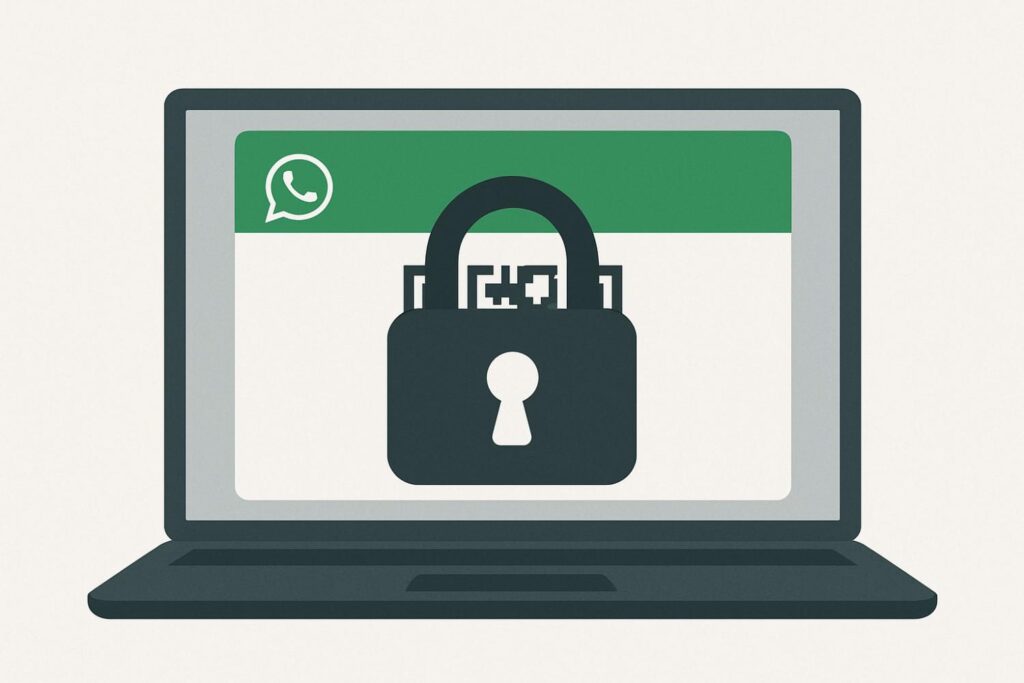
Short answer: Yes, when used correctly.
According to WhatsApp:
According to WhatsApp:
- Messages remain end-to-end encrypted
- QR login prevents password misuse
- Linked devices sync securely
Safety Tips You Should Follow
- Always log out on public computers
- Enable screen lock on your phone
- Use device lock for linked devices
- Regularly review linked devices
You can check active sessions anytime under Linked Devices.
Does WhatsApp Web Work Without Phone?
Partially—yes.
Once linked:
- Your phone doesn’t need internet constantly
- Your phone doesn’t need to stay nearby
However:
- Initial login requires your phone
- If you log out from phone, sessions end
This change was introduced after WhatsApp launched its multi-device support, officially announced by Meta.
Key Features of WhatsApp Web
WhatsApp Web isn’t just basic chat access.
Top features include:
- Send and receive messages
- Voice notes (browser supported)
- File sharing (PDFs, images, videos)
- Drag-and-drop uploads
- Desktop notifications
- Chat search
Limitations still exist:
- No status upload
- Limited calling support (browser-dependent)
Common WhatsApp Web Login Problems (And Fixes)
QR Code Not Scanning
- Clean phone camera
- Increase screen brightness
- Check internet connection
WhatsApp Web Not Loading
- Refresh browser
- Clear cache
- Update browser
Logged Out Automatically
- Phone logged out
- Device limit exceeded
- Manual logout from phone
Most issues resolve within minutes.
How to Logout from WhatsApp Web
Logging out is important for security.
From Computer
- Click three dots on WhatsApp Web
- Select Log out
From Phone
- Open WhatsApp
- Go to Linked Devices
- Select the active device
- Tap Log out
This instantly ends the session.
WhatsApp Web for Work: Smart Usage Tips
Want to stay productive without distractions?
- Mute non-work chats
- Turn off unnecessary notifications
- Use keyboard shortcuts
- Archive inactive chats
Small habits make WhatsApp Web a productivity tool—not a time trap.
Official Sources & References
To maintain transparency and trust, this article is based on:
- WhatsApp official help center
- WhatsApp Web specific guide:
- Meta announcements on multi-device support
- Cybersecurity best practices from global tech publications
All features discussed here are officially supported and currently active.
You’ll find more trending tech explainers when you explore more on Wordsfloww.
🌟 Final Thoughts
WhatsApp Web makes chatting simpler when you’re on your laptop or desktop. Whether you’re multitasking at work or browsing casually, it helps you stay connected with zero hassle.Just make sure to log out from shared systems and keep your phone online — and you’re good to go!

Neha Bhandari is a mom who understands the beautiful chaos of everyday family life. Through Wordsfloww, she shares real experiences, simple health habits, parenting reflections, and practical lifestyle ideas that make daily life a little easier and more balanced.